OmniInteraction
A flexible, Blueprint-friendly interaction system. Detect nearby objects, select between them, and interact instantly or by holding, with UI events built in
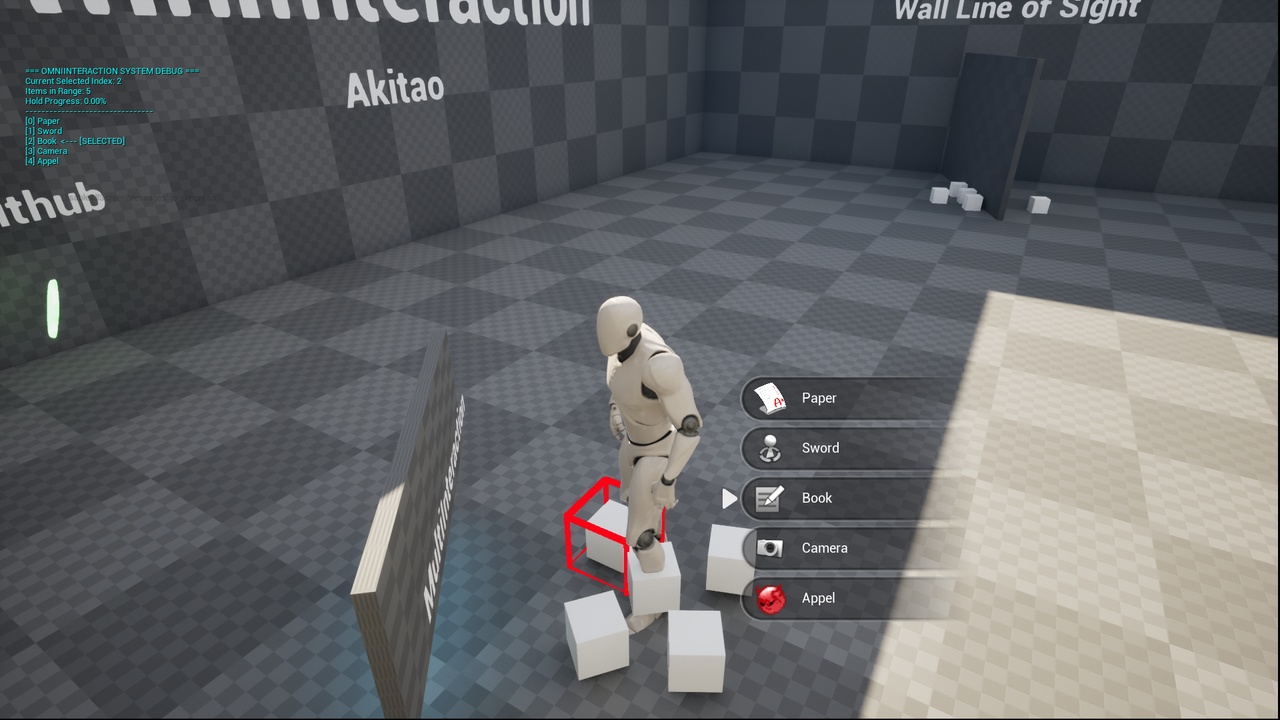
Overview
OmniInteraction gives any actor the ability to find and use interactable objects around it. Add one component to your character, implement one interface on your objects, and you get detection, line-of-sight checks, a selectable list, hold-to-interact, and UI events.
Radius detectionSpherical scan around the owner with a configurable radius.
Line-of-sightObjects hidden behind walls are ignored automatically.
Multi-item selectionScroll through several nearby items with IndexUp / IndexDown, with optional wrap-around.
Instant or holdEach object decides its own interaction duration. Progress is exposed for UI bars.
UI-ready eventsEnter, remove, selection, and live text-update delegates for widgets.
Built-in debugDraw the radius and print the full interaction state on screen.
Quick Start
- Enable the plugin
Edit → Plugins, enableOmniInteraction, restart the editor. - Add the component
Open your Character (or any actor) Blueprint and addInteraction System. - Implement the interface
In the object you want to interact with: Class Settings → Interfaces → addInteractable. - Fill in the functions
OverrideInteract,Get Interact Text,Get Interact Icon,Get Interaction DurationandShould Remove On Interact. - Hook up input
CallInteract(Get Current Index)on press,Stop Interacton release, andIndex Up / Downon scroll. - Play
Walk near the object. It is detected and highlighted automatically.
Collision requirement: interactable actors must have a collision component that overlaps or blocks the Visibility channel, otherwise the scan will not find them.
Interactable Interface
Implement IInteractable on any actor. All functions are Blueprint Native Events, so you can implement them in Blueprint or override _Implementation in C++.
C++ example
class AMyPickup : public AActor, public IInteractable
{
    GENERATED_BODY()
public:
    virtual void Interact_Implementation(AActor* Interactor) override;
    virtual FString GetInteractText_Implementation() override { return TEXT("Pick up"); }
    virtual float GetInteractionDuration_Implementation() override { return 0.0f; }
    virtual bool ShouldRemoveOnInteract_Implementation() override { return true; }
};
Component Reference
Class: UInteractionSystem (Actor Component). Add it to the actor that does the interacting.
Properties
| Property | Default | Description |
|---|---|---|
InteractionRadius | 90.0 | Detection radius in Unreal units. Read/write in Blueprint. |
bWrapSelection | false | Selection loops from last to first (and back) when scrolling. |
bShowDebugRadius | false | Draws the detection sphere. Green when idle, red while holding. |
bShowDebugState | false | Prints selected index, item list and hold progress on screen. |
Functions
| Function | Type | Description |
|---|---|---|
Interact(Index) | Callable | Interacts with the item at Index. Instant items fire at once; hold items start the hold timer. |
StopInteract | Callable | Cancels the current hold and resets progress. Call on input release. |
IndexUp / IndexDown | Callable | Moves selection and fires highlight start/end. |
InteractAll(bOnlyInstant) | Callable | Interacts with every nearby item. Defaults to instant items only. |
ClearAllInteractables | Callable | Clears the list and cancels any hold. |
RegisterWidgetReference(Widget) | Callable | Links a created widget to the next item slot so it can be removed correctly later. |
GetHoldProgress | Pure | 0 to 1. Bind to a progress bar. |
GetCurrentIndex | Pure | Currently selected index. |
GetSelectedActor | Pure | The selected actor, or null. |
IsHoldInteractionAtIndex(Index) | Pure | True if the item needs a hold. |
GetUpdatedTextAtIndex(Index) | Pure | Current interact text for an item. |
GetDistanceToInteractable(Index) | Pure | Distance from owner to item. |
Events
Bind these in Blueprint (Assign nodes) or in C++ with AddDynamic.
| Event | Parameters | Fires when |
|---|---|---|
OnItemEntered | ItemName, ItemIcon | A new interactable enters range and is visible. |
OnItemRemoved | WidgetRef, Index | An item leaves range or is consumed. Use it to destroy the widget. |
OnSelectionChanged | NewSelectedIndex | The selected index changes. |
OnUpdateInteractionText | Index, NewText | Every frame for each item, so dynamic text stays in sync. |
UI Setup (Blueprint)
- Bind
OnItemEntered. Create your entry widget (name + icon), add it to a Vertical Box. - Immediately call
RegisterWidgetReferencewith that widget. Do this right after creating it, one widget per entered item. - Bind
OnItemRemoved. Call Remove From Parent onWidgetRef. - Bind
OnSelectionChangedto highlight the entry atNewSelectedIndex. - Bind
OnUpdateInteractionTextto refresh the label atIndex. - For hold actions, drive a progress bar from
GetHoldProgress.
Tips & Best Practices
Keep the radius smallThe scan runs every frame. Small radii are cheaper and feel more precise.
Use the debug togglesEnable
bShowDebugState to see exactly what the system is tracking.Dynamic textReturn state-aware strings, like "Open Door" or "Close Door", from GetInteractText.
Highlight safelyDo highlight work only in OnHighlightStart/End so selection stays consistent.
FAQ
My object is not detected.
- Check that it implements
Interactable, is inside the radius, and has collision that responds to the Visibility channel. Walls between you and the object will also block it.
Can I use this on AI or non-player actors?
- Yes. The component works on any actor;
Interactoris simply the owner.
How do I make hold-to-interact?
- Return a duration above 0 from
GetInteractionDuration. CallInteracton press andStop Interacton release.
Does it work with Enhanced Input?
- Yes. The component has no input code; call its functions from any input event.
Copyright KhalidBen 2026. All rights reserved.